Showing posts with label JQuery. Show all posts

Tuesday, July 5, 2016

javascript hoisting

Java script hoisting Interview question

clip_image002

var a = "global Variable";

        function dotnetpiper() {
            console.log(a);
            var a = "local Variable";
            function z() {
                var a = "Inner local Variable";
                console.log(a);
            }
            z();

            console.log(a);
        }
        dotnetpiper();

Answer:

image

:

Saturday, August 8, 2015

JQuery Interview question and answer with practical: Part 1


image

Question: What is jQuery?
Ans: JQuery is fast, lightweight and feature-rich client side JavaScript Library/Framework which helps in to traverse HTML DOM, make animations, add Ajax interaction, manipulate the page content, change the style and provide cool UI effect. It is one of the most popular client side libraries.


Question: How JavaScript and jQuery are different?
Ans: JavaScript is a language while jQuery is a library built in the JavaScript language that helps to use the JavaScript language.

Question: Which is the starting point of code execution in jQuery?
Ans: The starting point of jQuery code execution is $(document).ready () function which is executed when DOM is loaded.

Question: Document Load Vs Window.Load() Jquery

Ans: Kindly have a look on detailed video demonstration as shown below:

Document Load Vs Window.Load() JQuery

$(document).ready()function is different from body window.load() function for 2 reasons.

We can have more than one document.ready () function in a page where we can have only one body onload function.

document.ready() function is called as soon as DOM is loaded where body.onload() function is called when everything gets loaded on the page that includes DOM, images and all associated resources of the page

Question: What is difference between prop and attr?

Ans:

JQuery.attr()

Get the value of an attribute for the first element in the set of matched elements.

Whereas,
JQuery. Prop ()

Get the value of a property for the first element in the set of matched elements.

What actually is Attributes?


Attributes carry additional information about an HTML element and come in name=”value” pairs. You can set an attribute for HTML element and define it while writing the source code.
E.g.

<input id="txtBox" value="Jquery" type="text" readonly="readonly" />

As shown above “id”, "type”, “value" are attributes of the input elements.
Property:

Property is a representation of an attribute in the HTML DOM tree. Once the browser parse your HTML code, corresponding DOM node will be created which is an object thus having properties.
in above case ,once browser renders the input in browser other properties like align, alt, autofocus, baseURI, checked so on will be addedas depicted in below image.


clip_image002


Since, attr() gives you the value of element as it was defines in the html on page load. It is always recommended to use prop() to get values of elements which is modified via JavaScript/JQuery in browser on rumtime.it always keeps the current state value.

Here we’ll have a look on the example which also states the difference b/w both of them.

I’ve html text box having some attributes as shown below:

 

clip_image003


If I run the following JQuery syntax it will produce such result.
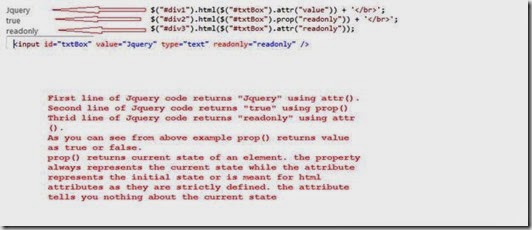
 

clip_image005

Now I’ve slightly changed the code and removed the read-only attribute as shown below in image:


clip_image006


I run the application and see some attribute and property to understand the difference on fly.

Initially after running the application we have these attributes and property of input text type as depicted in image below:

Note: Kindly scroll down when you run the attached sample application to see the Value property using firebug tool of Firefox browser.


clip_image008

Now I changed the value on runtime and see the attributes and property. I’ve put Welcome JQuery in textbox. Now see that attribute value is still JQuery while value property has been changed to Welcome JQuery.

clip_image010

The property always represents the current state while the attribute (except in old versions of IE) represents the initial state or is meant for html attributes as they are strictly defined. the attribute tells you nothing about the current state.

Reference MSDN:

1. for a checkbox (jquery 1.6+)

1

2

3

4

5

<input id="check1" checked="checked" type="checkbox" />

.attr('checked') //returns  checked

.prop('checked') //returns  true

.is(':checked') //returns true

Prop() method returns Boolean value for checked, selected, disabled, readOnly..etc while attr returns defined string. So, you can directly use .prop(‘checked’) in if condition.

2. SelectedIndex, tagName, nodeName, nodeType, ownerDocument, defaultChecked, and defaultSelected..etc should be retrieved and set with the .prop() method. These do not have corresponding attributes and are only properties.

3. .attr() calls .prop() internally so .attr() method will be slightly slower than accessing them directly through .prop().

Question: What is the difference between .js and .min.js and vsdoc.js?
Ans: jQuery library comes in 2 different versions Production and Deployment. The deployment version is also known as minified version. So .min.js is basically the minified version of jQuery library file. Both the files are same as far as functionality is concerned. but .min.js is quite small in size so it loads quickly and saves bandwidth.


clip_image012


Question: How to select id which contains Meta Character.

Ans: If any element id (<li id="first-li" class="list">Sachin Kalia</li>) contains meta character in between the id then it should be resolved using the two backslashes (\\) as prefix in ID selector.
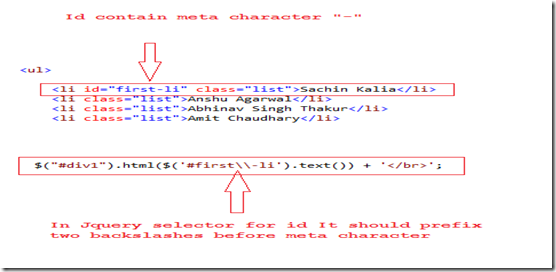
 

clip_image013

Question: Difference between and Usages of Html(),Text() and Val() functions in JQuery.

Ans : one of my friend interviewed in a company last day and confronted a question which I found little interesting though its very basic in nature. This is the actual content as shown below: 

  1: <div id="DivOne" class="oddNum">Div One Called !!
  2:     <span id="span">This is span value</span>
  3:     <span id="span">This is span value2
  4:         <p>I m paragraph of span 2</p></span>
  5:     <span id="span">This is span value3</span>
  6: </div>
  7: <div id="DivTwo" class="evenNum">Two</div>
  8: <div id="DivThree" class="oddNum">Three</div>
  9: <button id="btnOne">Reset odd numbers</button>
 10: <button id="btnTwo">Reset even numbers</button>
 11: <input type="text" id="txtBox" value="This is Text Box"></input>


Interviewer wanted an answer using Html(),Text() and Val().So here I’ve tried to get value using all three methods. When I initially use .Html() function it gives me all inner elements of particular div or an element you choose.This is the code base I’ve used as depicted below:

  1: $('.oddNum').css('background-color', '#DEA');
  2: $('#DivTwo').css('background-color', '#FCC');
  3: 
  4: $('#btnOne').click(function() {
  5:     // Action goes here
  6:    var result = $('#DivOne').html();
  7:     var resultText = $('#txtBox').val();
  8:     
  9:     alert(result);
 10:    // alert(resultText);
 11: });
 12: $('#btnTwo').click(function() {
 13:     // Action goes here
 14:     $('#DivTwo').css('background-color', '#FFF');
 15: });

This is the initial look of the elements in browser as given below in image:
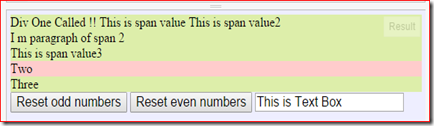

image


Case 1 : As soon as I click on the button Reset off numbers”  and keeps var result = $('#DivOne').html();  enable in code, it gives me following result set shown below in image:

  1:  var result = $('#DivOne').html();
  2:  alert(result);

Output:


 image 


Case 2. However if we put given below code than it gives us the result as text value of each inner elements also shown in image below to code segment.

  1: var result = $('#DivOne').text();
  2: alert(result);

Output:


 image


Case 3. However if we put given below code than it gives us the result as text value of each inner elements also shown in image below to code segment.

  1:  var result = $('#DivOne').val();
  2:  alert(result);

Output will be blank dialog box :


 image


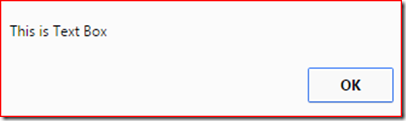
But if we execute same code with any “input” type element than div,span and paragraph elements than it gives me result as shown below in code

image


This specify  that val() function of JQuery works on input type elements than normal dom html elements.


This is the main difference between all of them .html(), .text() and .val().


ThanksSmile


Keep coding and Smile Smile
Monday, March 23, 2015

Attach an event to element to execute only once.

Today I have been using JQuery and confront an  interesting situation to click once on a Div. .To do this use One function exist into JQuery .

Generally when we attach an event to any element, event functionality remains with the element till element gets removed .If we delete that elements means that functionality has been deleted but if you don’t want to remove that element and want to run the event functionality only once,Kindly use this approach.

Answer is JQuery one() method.

This attaches a handler to an event for the element. The handler is executed at most once per element. In simple terms, the attached function will be called only once.

  1: $(document).ready(function() {
  2:     $("#DotnetPiper").one("click", function() {
  3:         alert("You have click once on DotnetPiper.com.");
  4:     });
  5: });​
  6: 


After the code is executed, a click on the element with ID dotnetpiper will display the alert. Subsequent clicks will do nothing.


This is best in use when you want to execute functionality once.


To know more MVC and WebApi Kindly go through with these links

MVC Articles & WCF and WebApi


Thanks

Monday, February 2, 2015

How to Create a Simple Bubble Popup! in jQuery

How to Create a Simple Bubble Popup! in jQuery

Let's create a simple BubblePopup!


As I learn more about the jQuery function every day, I have researched a feature that helps to perform some operation in the runtime called "CreateBubblePopup()".
It may do the following:

  • Attach popups to any DOM element!
  • Mouseover/mouseout events automatically managed!
  • Set custom popups events!
  • Create smart shadowed popups! (In IE too!)
  • Choose popup's style templates at runtime!
  • Insert HTML messages inside popups!
  • Many other options: distances, velocity, delays, colors, shadows...

Popup's shadows and colorized templates are fully supported by Internet Explorer 6+, Firefox, Opera 9+, Safari.
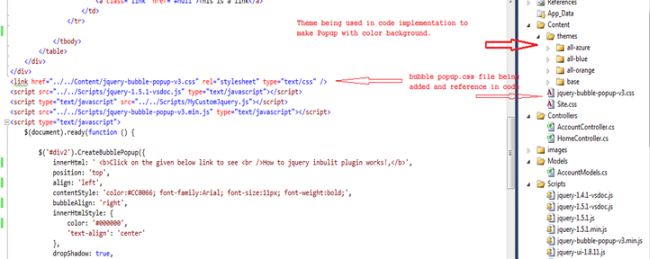
I've created a sample application that demonstrates the locating and functioning done by this feature. To proceed further and get the advantages of this jQuery plugin you must add a few references into your solution. The image shown below shows the .css, .js and theme libraries being used in the solution. You can find the theme over the internet in ample amounts though I have used a few like all-azure, all-blue and so on.


BubbleJquery1.jpg


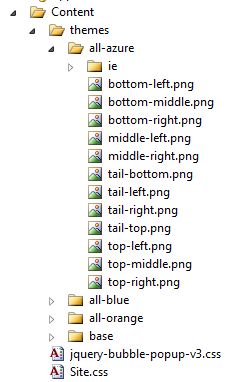
Jump into the themes folder and explore this.
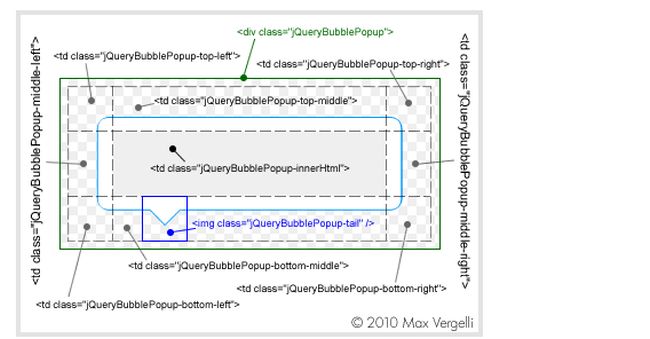
All-azure keeps multiple .jpg files that helps to create Popup side boundaries. Because CreateBubblePopup is built up from multiple <td> under a main <div> and if you notice, each .jpg file is associated with respective <td> segments.

BubbleJquery2.jpg


BubbleJquery3.jpg


These are a few libraries being used in this solution; they are:


  1: <link href="../../Content/jquery-bubble-popup-v3.css" rel="stylesheet" type="text/css" />
  2: <script src="../../Scripts/jquery-1.5.1-vsdoc.js" type="text/javascript"></script>
  3: <script type="text/javascript" src="../../Scripts/MyCustomJquery.js"></script>
  4: <script src="../../Scripts/jquery-bubble-popup-v3.min.js" type="text/javascript"></script


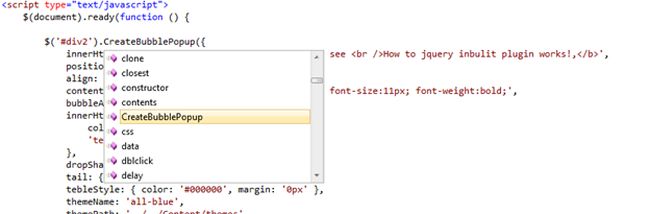
You can have a look into the CreateBubblePopup function using intelligence libraries.


BubbleJquery4.jpg


Properties


There are plenty of properties being used in this solution; some of them are the following:


  • STRING innerHtml: HTML message in the Bubble Popup.
  • STRING bubbleAlign: accepts "center", "left" or "right" values
  • STRING tailAlign: Bubble Popup's tail alignment, accepts "center", "left" or "right" values.
  • INT distanceFromTarget: Bubble Popup's distance from element.
  • INT openingVelocity: fade in velocity.
  • INT closingDelay: accepts an integer.
  • BOOLEAN showOnMouseOver: disable "onmouseover" event.
  • STRING color: change Bubble Popup color based on default template folder; accepts "azure", "blue", "green", "orange", "violet", "yellow".
  • STRING imageFolder: folder name that stores color templates.
  • BOOLEAN hideTail: true or false.
  • ARRAY hideObjectID: hide specific object tags if it is needed for incompatibility.
  • STRING contentStyle: set a custom CSS style to the HTML message.
  • INT zIndex: CSS z-index property of Bubble Popup.
  • INT/STRING width: Bubble Popup's width: "auto" (as default), an integer value or a string like "200px".

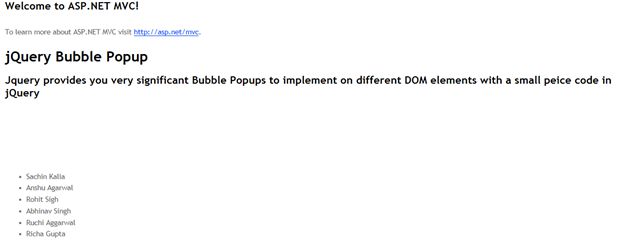
Move ahead and I press F5 and the following image shows:


BubbleJquery5.jpg


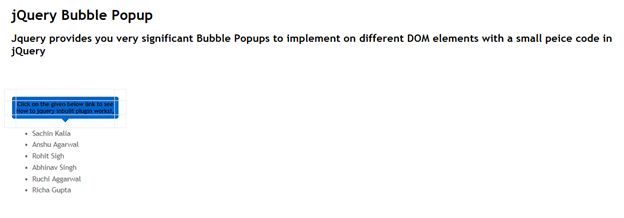
If you take over the mouse on the div having multiple <li> list elements, it prompts you with a bubble popup and asks you to perform a certain set of actions or some other notification. It's all up to the user what they would like to perform using a relevant feature.
Let's see how it appears after hovering the mouse on the li elements.


BubbleJquery6.jpg


It asks you "Click on the given following link to see How to jQuery builtin plugin works!".
I've plugged in this function with $('#div2').CreateBubblePopup({});
Click on any of the li elements under $('#div2'), it performs the certain action that I have implemented in code. Here it calls the "Animate ()" function of the customized jQuery plugin.
A sample application has been attached in source code.


http://www.c-sharpcorner.com/UploadFile/97fc7a/how-to-create-a-simple-bubble-popup-in-jquery/


Thanks for reading this article Smile

To learn more about MVC please go to the following link.

MVC Articles

Thanks.
Keep coding and Stay Happy Smile
Wednesday, November 12, 2014

Learn JQuery step by step

Learn JQuery step by step

An idea to write an article “Learn JQuery step by step” with  you all who keen to learn JQuery.
I tried to cover all JQuery key factors which are being use in daily practice with LIVE examples.
I have also attached an application so that you can read and  practice side by side.

image

Please share your inputs and thoughts so that I could write more about this.


Kindly download PowerPoint Presentation from here:

Learn JQuery Step By Step

Kindly click to download source code shown below:
SourceCode

To learn more about MVC please go to the following link.


MVC Articles

ThanksSmile
Wednesday, September 10, 2014

Custom Value Providers in ASP.Net MVC


Dotnetpiper
This article describes Custom Value Providers in MVC and their uses. Value Providers are the components that feed data to model binders. Feeding the data means installing the data to the Model binder for further use at the action level.
The framework contains a few built-in value providers named FormValueProvider, RouteDataValueProvider, QueryStringValueProvider and HttpFileCollectionValueProvider that fetch data from Request.Form, Request.QueryString, Request.Files and RouteData.Values.

These Value Providers are called in the order they are registered and so the one that is registered earlier gets the first chance. We can easily restrict the model from binding with the data from a specific Value Provider.
In this article we will see how to create custom value providers that fetch a value from a cookie and pass model binders at the action level.
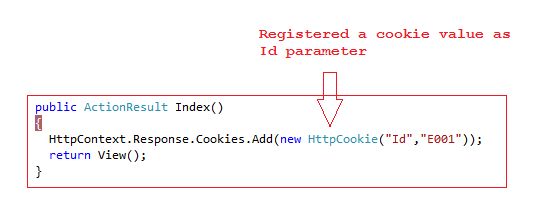
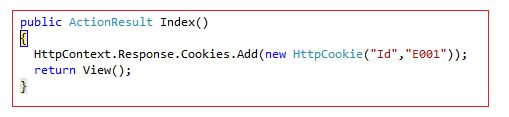
Down the level, I have created a controller that has an action declared as an index. When the Index action is called using GET a cookie is added to the browser called "Id" with the value "E001" assigned to it.
cookie
When the form is posted [HttpPost] an index action is again called and the cookie value is automatically assigned to the Id parameter on the POST index method. But how?
 
how

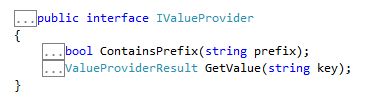
Each value provider implements an interface IValueProvider that has two methods as shown below in the image:
value provider implements
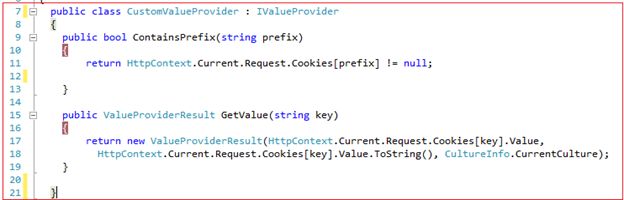
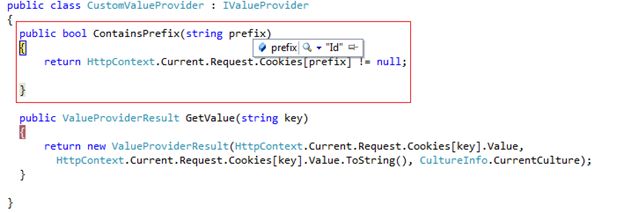
The ContainsPrefix method is called by the model binder to determine whether the value provider has the data for a given prefix. The GetValue method returns a value for a given data key or returns null if the provider doesn't have any suitable data. Here is an implementation of both methods as shown below in the image:
 
methods

In the image shown above the ContainsPrefix method checks whether the passed parameter is stored in the cookie (or the value the user has registered in another request/response parameters) and returns true or false. In the GetValue method it returns a value from the cookie collection for the passed key (in our case it's Id).

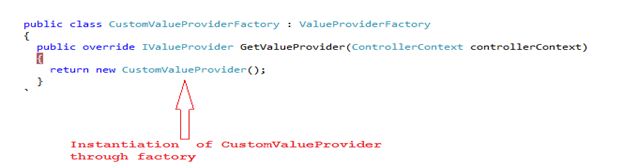
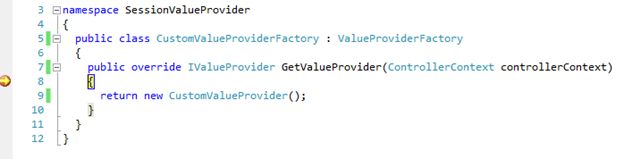
Now it's time to register the value provider through factories to make them install data to the model binder. We need to create a factory to register our CustomValueProvider by deriving from the abstract class ValueProviderFactory. The factory contains a single method GetValueProvider where we should instantiate our custom value proivder and return it.

provder

Now we need to register CustomValueProviderFactory to the ValueProviderFactories.Factories collection in the Application_Start event of Global.asax.cs as shown in the following image:

CustomValueProviderFactory
Now I press F5 and run the application.
run the application
Let's run the application and discuss the points step-by-step to fetch the value from the CustomValueProvider.
Step 1: As soon as it runs the application it registers a cookie value as depicted in the image below:

cookie value


Step 2:
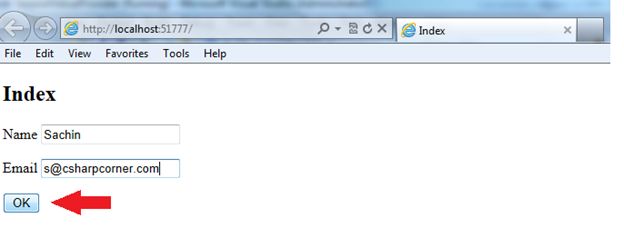
Fill in the required values and press the ok button, kindly see the following image:

Fill the required values

Step 3: It calls the CustomValueProvideFactory class to instantiate CustomValueProvider as depicted in the image below:

Code

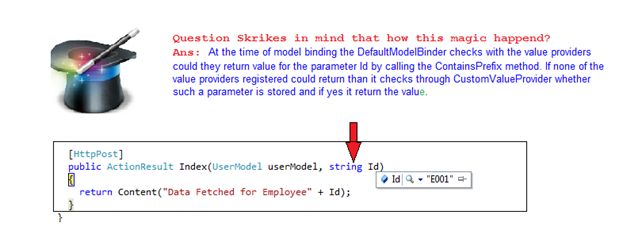
Step 4: At the time of the model binding the DefaultModelBinder checks with the value providers do determine if they can return a value for the parameter Id by calling the ContainsPrefix method. If none of the value providers registered can return then it checks through CustomValueProvider whether such a parameter is stored and if yes it returns the value. Kindly refer to the screen shot given below:

parameter Value

Step 5: A final step is at the post action method when it retrieves a cookie value from CustomValueProvides.

post action method

Important Note: If we change the parameter exists in action method then it doesn't find a value from the registered custom value provider due to a mismatch and it returns null. You can also retrieve multiple values from value providers. Kindly find the attached sample application.

Kindly refer to the image below:

sample application
The Value Providers Magic is Over.
 
Providers

I hope you enjoyed this and that it may help you down the line.

To learn more about MVC please go to the following link.

MVC Articles
Thanks
Enjoy Coding and ReadingSmile


Friday, August 22, 2014

Difference between prop and attr in JQuery.

Difference between prop and attr in JQuery?
Answer:

Jquery


JQuery.attr()
Get the value of an attribute for the first element in the set of matched elements.
Whereas:
JQuery. Prop ()
Gets the value of a property for the first element in the set of matched elements.


What Attributes actually are
Attributes carry additional information about an HTML element and come in name=”value” pairs. You can set an attribute for a HTML element and define it when writing the source code.
For example:
<input id="txtBox" value="Jquery" type="text" readonly="readonly" />
As shown above, “id”, "type” and “value" are attributes of the input elements.

Property

Property is a representation of an attribute in the HTML DOM tree. Once the browser parses your HTML code, the corresponding DOM node will be created that is an object thus having properties.
In the above case, once the browser renders the input in the browser, other properties like align, alt, autofocus and baseURI are checked and so on, will be added as depicted in the following image.
clip_image001


Since attr() gives you the value of an element as it was defined in the HTML on page load. It is always recommended to use prop() to get the values of elements modified via JavaScript/jQuery in the browser at runtime. It always keeps the current state value.
Here we'll have a look at the example that also states the difference between both of them.
I have a HTML text box with some attributes as shown below:


clip_image002


If I run the following jQuery syntax then it will produce such results.


clip_image003


Now I've slightly changed the code and removed the read-only attribute as shown below in the image:


clip_image004


I run the application and see some attribute and property to understand the difference on fly.
Initially after running the application we have these attributes and properties of input text type as depicted in the image below.
Note: Kindly scroll down when you run the attached sample application to see the Value property using the Firebug tool of the Firefox browser.
clip_image005


Now I changed the value at runtime and see the attributes and properties. I've put Welcome jQuery in the textbox. Now see that the attribute value is still jQuery while the value property has been changed to Welcome JQuery.


clip_image006


The property always represents the current state while the attribute (except in old versions of IE) represents the initial state or is meant for HTML attributes since they are strictly defined. The attribute tells you nothing about the current state.

Reference MSDN:

for a checkbox (jquery 1.6+)
<input id="check1" checked="checked" type="checkbox" />
.attr('checked') //returns checked
.prop('checked') //returns true
.is(':checked') //returns true


Prop() method returns Boolean value for checked, selected, disabled, readOnly..and so on while attr returns defined string. So, you can directly use .prop("checked") in if condition.
SelectedIndex, tagName, nodeName, nodeType, ownerDocument, defaultChecked, and defaultSelected..and so on should be retrieved and set with the .prop() method. These do not have corresponding attributes and are only properties.
.attr() calls .prop() internally so .attr() method will be slightly slower than accessing them directly through .prop().


Question: What is the difference between .js and .min.js and vsdoc.js?


Answer: The jQuery library comes in the 2 versions Production and Deployment. The deployment version is also known as the minified version. So .min.js is basically the minified version of the jQuery library file. Both the files are the same as far as functionality is concerned. but .min.js is quite small in size so it loads quickly and saves bandwidth.


clip_image007
Question: How to select id that contains Meta Character.
Answer: If any element id (<li id="first-li" class="list">Sachin Kalia</li>) contains a meta character between the id then it should be resolved using the two backslashes (\\) as the prefix in the ID selector.
clip_image008


Thanks.

To learn more about MVC please go to the following link.


MVC Articles

Thanks

Enjoy Coding and ReadingSmile